How to Find the GTM Container ID Used by a Website
A quick way to find the Google Tag Manager container ID used by a website with the GTM Refine bookmarklet, including multiple-container detection and why a bookmarklet is faster than installing a browser extension.
The Short Version
If you need to answer "how do I find the Google Tag Manager ID on this website?", the quickest method I know is the GTM Refine bookmarklet.
Open GTM Refine, click click here above the input field, and drag the GTMRefine.com bookmarklet to your bookmarks bar. After that, visit any website and click the bookmarklet. It instantly checks the page for Google Tag Manager, sends the detected GTM container ID or IDs back to GTM Refine, inserts the ID into the main input field, and lets you choose one for an optional audit.
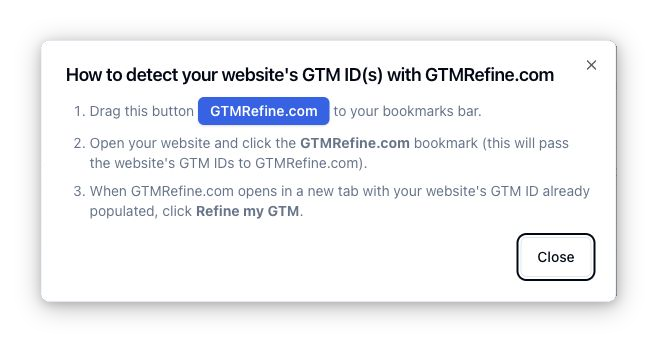
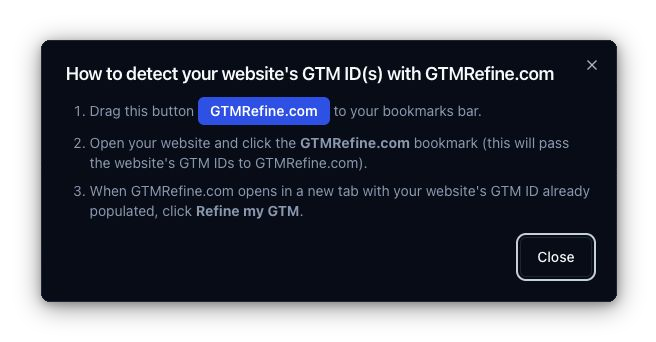
That is much faster and simpler than installing a browser extension. There is no extension store, no permissions screen, no browser-specific install flow, and no extra tool to keep updated. It is just a bookmark. It works across modern browsers including Chrome, Safari, Microsoft Edge (MS Edge), and Firefox.
Why I Built It
I use this bookmarklet almost every day.
Sometimes I am checking a client site before a GTM audit. Sometimes I am looking at a staging page and need to confirm whether the expected container is actually present. Sometimes I just need to know whether a page has GTM at all before spending time on deeper diagnostics.
I am also seeing more and more GTM Refine visitors start using it. That makes sense: "find the GTM ID" sounds like a tiny task, but it often turns into a small friction pile. You can inspect source, search the network panel, open DevTools, install an extension, or copy a URL into a server-side checker and hope it can load the page. A bookmarklet is faster because it runs exactly where you already are: inside the page in your own browser.
What the Bookmarklet Detects
The bookmarklet checks for the GTM runtime on the current page and reports what it finds.
If GTM is present, it finds the container ID, such as GTM-ABC123, and adds it to GTM Refine. With a single detected container, the ID is inserted into the main input field, where you can run the audit or copy the ID to your clipboard if that is all you needed.


If there are multiple GTM containers installed on the same page, it lists all of their IDs so you can choose the one you want to audit.
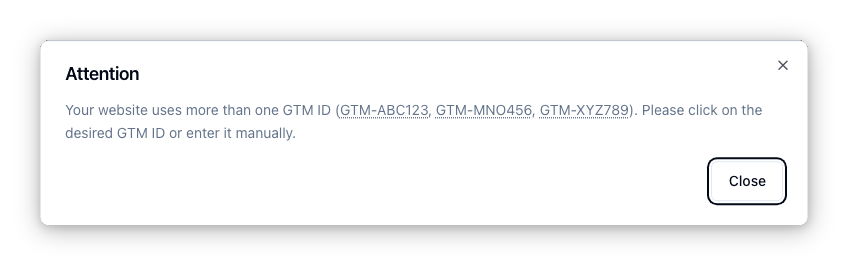
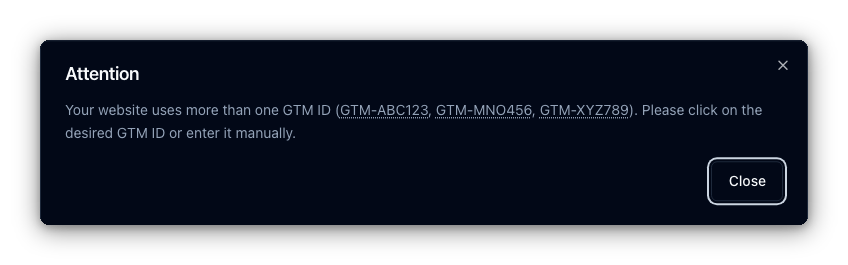
If GTM is not present, it tells you that too. That absence is often just as useful as a found ID, especially when you are checking whether a tag manager was removed, blocked by consent, loaded only on certain templates, or missing from a staging environment.


So the workflow is:
- Visit the website you want to check.
- Click the GTMRefine.com bookmarklet in your bookmarks bar.
- See whether GTM is present.
- If one GTM container is found, use the ID inserted into the input field, copy it if needed, or continue with an audit.
- If multiple GTM containers are found, pick the one you want to audit.
That answers the common questions directly: how to find GTM container ID, how to check GTM on a website, and where can I get a GTM ID when all you have is the live site.
Why a Bookmarklet Is Faster Than a Browser Extension
Browser extensions are powerful, but they are heavy for this job.
To install one, you usually need to open the Chrome Web Store, Firefox Add-ons, Safari extension settings, or Microsoft Edge Add-ons. You need to approve permissions, keep the extension enabled, and sometimes repeat the process on another browser. If you work across multiple browsers, that friction multiplies.
A bookmarklet is lighter. It is a normal browser bookmark whose URL starts with javascript:. When you click it, the browser runs a tiny piece of JavaScript on the current page. That means there is no extension install and no platform-specific setup. Once it is on your bookmarks bar, it is there in Chrome, Safari, Edge, or Firefox just like any other bookmark.
For a task this small, that difference matters. You do not need a full extension to find a GTM container ID. You need a quick client-side check that can tell you whether the page exposes a GTM runtime and which container IDs are loaded.
There is also less long-term maintenance. The bookmarklet does not need further code updates on your side, browser extension updates, background permissions, or a vendor-specific release cycle. If you no longer need it, you can delete it exactly like any other bookmark.
Existing browser extensions, including older tools such as the legacy Google Tag Assistant, may also struggle with newer setups such as Google tag gateway (GTG). GTG can route Google tag requests through a first-party path, and some extension heuristics were built before that became a common pattern.
Other Ways to Find a GTM ID
There are a few other ways to find a GTM container ID on a website. I still prefer the bookmarklet because it is fast after one-off installation: drag the button to your bookmarks bar once, which is basically a one-second setup, then each future check takes about 1-2 seconds.
| Method | How it works | Compared with the bookmarklet |
|---|---|---|
| GTM Refine bookmarklet | Click the saved bookmarklet on the page you are checking. | Usually the quickest and most reliable option for this specific job. It reads the GTM runtime in the browser session you are already using. |
| Inspect the page source | Open the page source, search within it, and look for a GTM- container ID. The exact menu names differ by browser, but the idea is the same: view source, then find text. | This may take around 10 seconds, but the bigger issue is accuracy. It can find false positives, such as old GTM IDs left in comments, and miss false negatives when GTM is loaded dynamically and is not present in the original source. |
| Check browser developer tools | Open DevTools, inspect the Network panel, reload the page, and search for GTM-related requests such as gtm.js?id=GTM-XXXXX. | More reliable than page source because it observes loaded requests and ignores comments, but it takes more manipulation and at least one reload. Even for an experienced digital marketing practitioner, it can easily take 30+ seconds. It may also miss GTM when GTG is deliberately configured behind a custom or randomized first-party path. |
Type window.google_tag_manager in the DevTools console | Open DevTools, go to the Console, and evaluate the GTM runtime object directly. | This is very reliable, but the returned object is not always friendly to read, especially with multiple containers. A nicer output usually means finding and pasting a longer JavaScript snippet, sometimes after typing allow pasting. For a seasoned martech specialist, this may take 5-10 seconds. |
| Use a browser extension | Install an extension and let it inspect tags on pages you visit. | Useful for broader diagnostics, but too heavy for simply finding a GTM ID. It adds install steps, permissions, update concerns, and may not fully understand newer GTG setups. |
How the JavaScript Works
The bookmarklet JavaScript is deliberately basic.
It reads the window.google_tag_manager global variable and looks at its keys. When GTM is running on a page, that global object commonly contains entries keyed by container ID. So if the page has GTM-ABC123 and GTM-XYZ789 loaded, those IDs can be deduced from the object keys.
In plain English, it does this:
- Look for
window.google_tag_manager. - Read the keys from that object.
- Keep the keys that look like GTM container IDs.
- Send those IDs back to GTM Refine.
That is all. It does not need to crawl the site, parse a whole HTML document, or run a remote browser session.
Because the JavaScript runs client-side inside your own browser, it can also pass through many situations that block server-side tools. Some GTM ID checkers use headless browsers running on a server. Those can be stopped by anti-bot protection, geo rules, authentication, consent flows, or scripts that behave differently for data-center traffic. The bookmarklet runs in the real browser session you are already using, after the page has loaded for you, which makes it a very efficient way to read the same GTM runtime variable.
Can You Trust the Bookmarklet JavaScript?
You should not blindly copy and paste random JavaScript snippets into your browser console. Some snippets can contain malicious code, so whenever I paste code into DevTools, I first check it with my eyes. More recently, I have also been using AI as a second-pass reviewer.
You can inspect the JavaScript behind the GTM Refine bookmarklet the same way. After dragging the GTMRefine.com button to your bookmarks bar, edit the bookmark or copy its URL, paste the javascript: code into an AI chatbot, and ask what it does and whether it is safe enough for the declared purpose of detecting Web GTM container IDs on the current page.
For convenience, these links open popular AI chatbots with that review prompt already filled in, including the current bookmarklet JavaScript from the GTM Refine homepage:



Multiple GTM Containers Are Common Enough to Matter
Many sites have exactly one GTM container. But multiple-container setups are not rare.
You might see separate containers for different teams, legacy and new implementations running side by side, an agency-owned container next to a client-owned container, or a consent/testing container added temporarily and never removed.
That is why the bookmarklet does not just grab the first ID and move on. If it sees more than one GTM container ID, GTM Refine shows the list and lets you pick the one you want to continue with. That matters because an audit should be deliberate. If a page loads three containers, you probably do not want a tool silently choosing one for you.
What To Do After You Find the GTM ID
Finding the GTM container ID is often just the first step.
Once the bookmarklet has added the ID to GTM Refine, you can optionally run an audit. GTM Refine can then inspect the container and surface issues such as naming inconsistencies, risky trigger configurations, duplicated or confusing setup patterns, and other problems that are hard to catch by opening GTM entities one at a time.
But you do not have to run the audit every time. Sometimes the whole job is simply: is GTM installed on this website, and what is the container ID? For that, the bookmarklet is intentionally instant.
Related GTM Audits
If finding the GTM ID is the first step, the next step is usually understanding whether the container is healthy.
For trigger-specific checks, I have written about two GTM issues that are easy to miss by eye: Trigger Groups that can reference themselves, and tags where the same trigger is both firing and blocking. Both are examples of configurations that can look acceptable in the GTM UI while still breaking tracking logic.
If you are cleaning up a larger inherited container, you may also find the posts on consistent GTM naming conventions and mixed Data Layer Variable versions useful. Those are the kinds of issues GTM Refine is designed to surface after the bookmarklet gets you to the right container.
Quick FAQ
How to find GTM container ID used by a website?
Install the GTM Refine bookmarklet once, visit the website, and click the bookmarklet. It reads the GTM runtime in your browser and sends any detected GTM container IDs back to GTM Refine, where a single detected ID is inserted into the main input field.
How to find Web Google Tag Manager (GTM) ID?
The Web Google Tag Manager ID is the GTM-XXXXXXX container ID loaded by the website. The bookmarklet detects it from the current page and adds it to GTM Refine automatically, so you can copy it from the input field or audit it straight away.
How do I find Google Tag Manager ID (Container ID)?
Use the bookmarklet when the page is fully loaded. If GTM is present, GTM Refine shows the container ID. If more than one container is present, it lists the IDs so you can choose the right one.
How to check GTM on website?
Click the bookmarklet on the website you want to check. It tells you whether GTM is present or absent on that page.
Where can I get a GTM ID?
If you own the container, you can get the GTM ID from Google Tag Manager itself. If you are checking a live website, the GTM Refine bookmarklet can detect the GTM ID being used on that page.
Try It
Go to GTM Refine, click click here above the main input, and drag the bookmarklet to your bookmarks bar.
The next time you need to find a Web Google Tag Manager ID, check whether GTM is installed on a website, or identify multiple GTM containers on the same page, click the bookmarklet. It is the fastest path I know from "what GTM container is this site using?" to an actual container ID you can work with.